Troubleshooting the GBP Review Reply Red Error Message: A Guide for Local Operators
Persistent errors in the Google Business Profile dashboard are preventing businesses from engaging with customers.
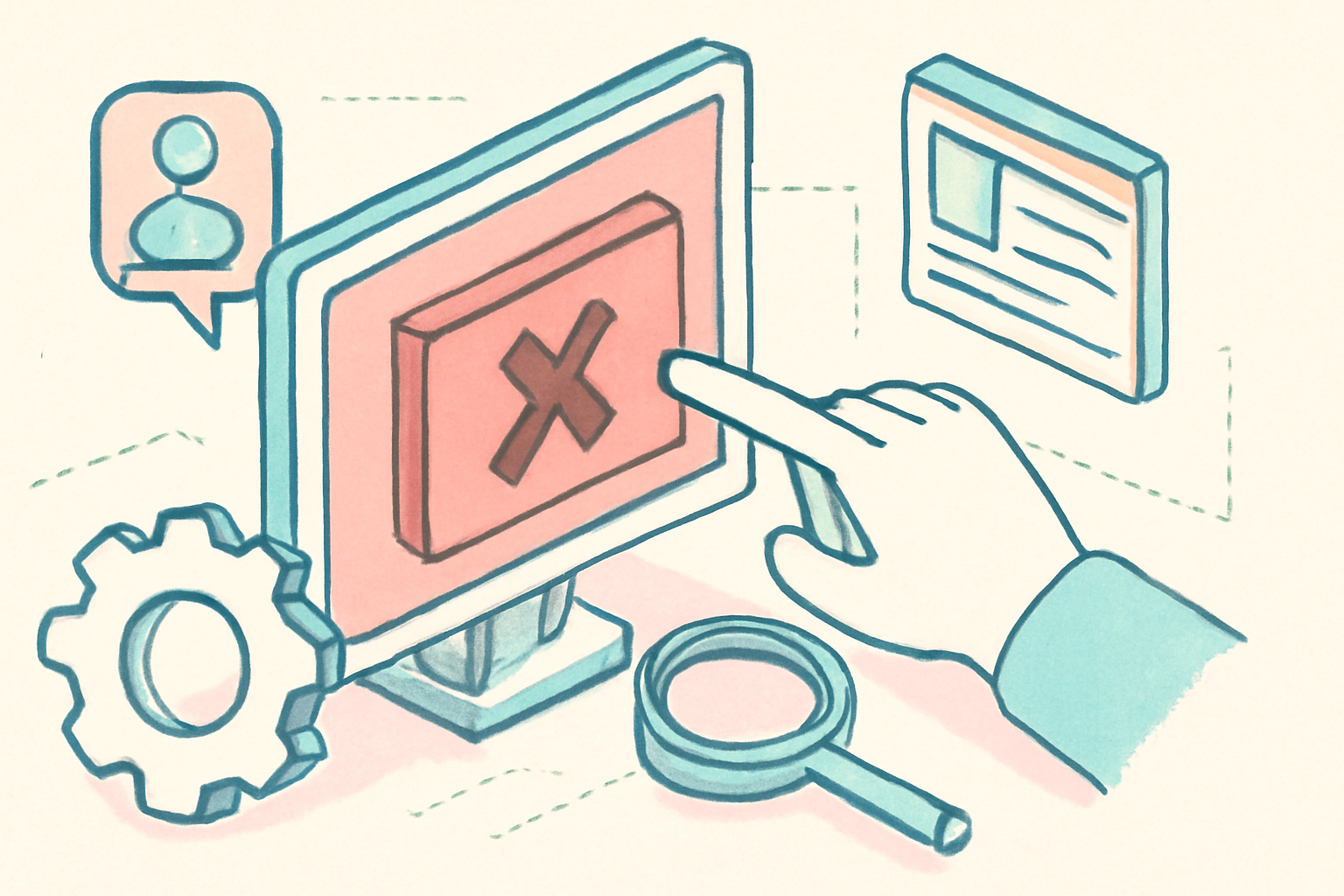
Business owners are currently facing a frustrating technical hurdle where responding to customer feedback results in a generic failure notification. This GBP review reply error (last updated April 23, 2025, via Local Search Forum) manifests as a red bar appearing at the top of the interface, preventing the response from being saved or displayed publicly. For a dental practice in Leeds or a 12-location HVAC operator, these interactions are critical for maintaining reputational signals and signals of responsiveness that may influence local rankings.
When this feature fails, it disrupts standard operating procedures and leaves customer queries unanswered. We have analyzed current reports to determine if this is a localized technical glitch or a systematic failure within the Google Business Profile (GBP) infrastructure. Unlike historical issues where a reply might simply vanish or stay in a "pending" state, this specific iteration displays a red warning banner stating that the customer will be notified, yet the software fails to finalize the transaction. We observe that this behavior differs from historical "shadow-banned" reviews or replies. Usually, if a response violates a policy, it will appear to post for the owner but remain invisible to the public. In this instance, the platform explicitly blocks the action from occurring in the Merchant Center interface entirely.
Why is the GBP review reply error appearing?
The error typically occurs immediately after a user clicks the submit button. Even when the user has verified Owner-level access and has attempted common remedies like clearing browser cookies or switching devices, the system refuses to process the text. Current data suggests this is a known platform-wide bug rather than a specific penalty against individual accounts. We have seen similar discrepancies in the past where the 'New Merchant Experience' (NME) on desktop fails while the mobile environment remains stable. Unlike the legacy dashboard which was a dedicated portal, the current search-based management system relies heavily on real-time browser script execution, making it more prone to these localized failures.
One significant factor identifies this as a front-end interface bug: the inconsistency between devices. If a dental practice in Leeds finds they can reply via the Google Maps mobile app but not the desktop Search interface, the problem is likely a localized front-end bug. Conversely, if a multi-location operator find the error persists across all locations regardless of the device used, it may point toward an API-level issue or a profile-wide restriction tied to the account's trust score.
How to fix Google Business Profile reply not working?
If you are searching for how to fix Google Business Profile reply not working, the solution often lies in bypassing the primary desktop interface. Because Google's infrastructure is fragmented across different entry points (Search, Maps, and the API), a failure in one does not always mean a failure in others. For many operators, the only successful path is to shift away from the Search-based dashboard. During our analysis, we have found that utilizing the Google Maps app specifically—rather than the web browser on a phone—offers a more direct line to the database that often circumvents the script errors present on the desktop version.
Another critical step involves an audit of the reply content itself. Google's automated filters have become increasingly aggressive. If your response contains more than one URL, or if it uses symbols like "!!!" or "$$$", the system may reject the post entirely to prevent spam. This is a common trigger for the red error bar. By stripping the response down to plain text with standard terminal punctuation, many operators have successfully pushed through a reply that was previously blocked. This differs from the older management experience where a blocked reply would simply generate a generic "Policy Violation" warning; now, it often just triggers the red communication error.
Is it a local cache issue or an API bug?
Before assuming the worst, operators must distinguish between a browser-side failure and a backend Google service disruption. A 12-location HVAC operator managing several profiles might find the error persists across all locations, which points toward a deeper API-level issue or a profile-wide restriction. When Google undergoes significant updates to its core local algorithm, we often see these types of interface glitches as they migrate data between servers.
If the issue is limited to one specific browser, like Chrome, it is highly likely a conflict with a browser extension or a corrupted cache file. However, we have received reports of the error occurring across Safari, Firefox, and Chrome simultaneously for certain users. In these cases, the issue is not local. It is a known processing delay where Google's servers fail to acknowledge the receipt of the text string. Unlike previous years where a "hard refresh" (Ctrl+F5) solved most dashboard issues, the current reliance on Google Search as the management interface makes these bugs more persistent and harder for the end-user to resolve through traditional troubleshooting.
Detailed content audit: Triggers for the red banner
When a reply is blocked, the underlying cause is frequently the text being submitted. We recommend reviewing your text for the following elements that are currently known to trigger the red error notification:
- Phone Numbers and Contact Info: Google prefers that businesses do not include direct phone numbers or email addresses in review replies, as these can be used for lead diversion. If your template includes a "Call us at..." line, try removing it.
- Excessive Punctuation: Using more than one exclamation point or using unusual spacing (e.g., "H E L L O") often triggers a spam filter that results in a generalized error.
- Hyperlinks: Any URL, even a link to your own website’s contact page, can cause a reply to fail. The platform's security protocols have recently tightened to prevent phishing attempts within the review ecosystem.
- Special Characters: Symbols such as brackets, excessive emojis, or currency symbols in high density can be seen as "low quality" content by the automated moderator.
What this means for local businesses
Until Google deploys a permanent fix for this interface glitch, businesses must modify their engagement strategies to ensure they do not fall behind on customer service metrics. We recommend the following steps:
- Switch to Mobile Management: Use the Google Maps iOS or Android app as the primary response tool. This environment uses a different communication protocol that is frequently more stable than the desktop Search interface.
- Document and Delay: Do not let your carefully written responses disappear into the void. Keep a master spreadsheet of pending replies. If a response fails, copy the text to a document so it can be reposted once the system stabilizes or via a different device.
- Audit for Restricted Content: Before escalating to support, ensure your reply is purely alphabetic. Remove all links, phone numbers, and repetitive punctuation to see if the error persists. This simple change solves the majority of "manual" blocks.
- Check Third-Party Visibility: Use an incognito window to see if any of your failed attempts actually went through. Sometimes the red error bar is a "false negative," where the message was saved to the server but the interface failed to update the visual state for the manager.
- Use API-Based Tools: Professional management software that connects via the official Business Profile API often sidesteps the bugs present in the consumer-facing Search dashboard. If you manage more than ten locations, utilizing these tools is often the most reliable way to maintain uptime.
Sources
Frequently asked questions
- Why does a red error bar appear when I try to reply to a Google review?
- This error generally indicates a communication failure between your browser and Google's servers. It is often caused by a bug in the 'New Merchant Experience' on desktop Search. It can also be triggered if your reply contains restricted content like phone numbers, website links, or excessive symbols that Google's automated filters flag as spam. In most cases, it is a technical glitch rather than a permament suspension of your replying privileges.
- Can I fix the GBP review reply error by clearing my browser cache?
- While clearing your cache and cookies is a standard first step, it rarely solves this specific error. Because the issue is frequently tied to Google's backend processing or the specific script used in the Search-based dashboard, the error usually persists across different browsers. However, trying an Incognito window can help determine if a browser extension is conflicting with the dashboard's ability to submit your text.
- Is there a way to reply to reviews if the desktop dashboard is broken?
- Yes, the most reliable alternative is using the Google Maps app on a smartphone. Sign into the account that manages the business, search for your business name, and navigate to the 'Reviews' section. The mobile app uses a different API pathway than the desktop site and often remains functional even when the desktop dashboard is experiencing the red error bar glitch.
- Does this error mean my Google Business Profile is suspended?
- Not necessarily. If you can still see your business on Google and can edit other information like your hours or description, your profile is likely in good standing. This error is typically limited to the review engagement module. If you were suspended, you would likely see a prominent 'Suspended' or 'Disabled' notice on your account overview page rather than an isolated error during the review reply process.
- How long does it take for Google to fix these dashboard bugs?
- Platform-wide bugs in the Google Business Profile dashboard can vary in duration. Some are resolved within 24 to 48 hours, while more complex issues involving the migration of the management interface can persist for weeks. We recommend monitoring industry forums and checking if a mobile device or third-party tool works in the meantime, as Google rarely provides specific timelines for these interface fixes.
Follow us in Google
See Map Observer first in Top Stories
Google lets you choose the publications you want to see more of. Pick Map Observer and our local search reporting is surfaced higher in Top Stories — and badged as preferred in AI Overviews and AI Mode — whenever you search.
Related reading